LightBlog

dimanche 16 octobre 2022

Apple iPhone 14 Pro Max vs Samsung Galaxy S22 Ultra: Android vs iOS heats up in the premium space

The iPhone 14 Pro Max and Galaxy S22 Ultra aren’t just Apple and Samsung’s biggest and best slab smartphone offerings of 2022, they’re also likely the two biggest and best smartphones on the market, period.

A good argument could have been made for the Xiaomi 12S Ultra if it wasn’t sold only in China, and perhaps the Pixel 7 Pro will dethrone the Galaxy S22 Ultra, but it’s too early to make that call as we haven’t had enough time with the devices yet.

Plus, no other phone brand has the worldwide availability of Apple and Samsung, so for most of the world, the iPhone 14 Pro Max and Galaxy S22 Ultra do represent the two absolute best smartphone options right now. But which one is better? I’ve had extensive time with both, and here’s my breakdown.

    Galaxy S22 Ultra
    The Galaxy S22 Ultra is the best of the best right now in the Android space, with the best screen, the best zoom camera, and an S Pen to boot!
    Apple iPhone 14 Pro
    The iPhone 14 Pro and Pro Max are the highest-end 2022 phones from Apple. They introduce the A16 Bionic chip, Dynamic Island, Always-on display, and more.

Apple iPhone 14 Pro Max vs Samsung Galaxy S22 Ultra: Specifications

Specifications Samsung Galaxy S22 Ultra Apple iPhone 14 Pro Max
Build
  • Aluminum mid-frame
  • Gorilla Glass Victus back
  • Gorilla Glass Victus front
  • Stainless steel mid-frame
  • Glass back
  • Ceramic Shield glass front
Dimensions & Weight
  • 163.3 x 77.9 x 8.9mm
  • 229 grams
  • 160.7 x 77.6 x 7.9 mm
  • 240g
Display
  • 6.8-inch Dynamic AMOLED 2X curved display
  • Variable refresh rate up between 1Hz to 120Hz
  • 6.7-inch Super Retina XDR OLED
  • ProMotion refresh rate between 1Hz and 120Hz
SoC
  • International: Exynos 2200
  • US, China, India, among others: Qualcomm Snapdragon 8 Gen 1
  • Apple A16 Bionic
RAM & Storage
  • 8GB/12GB RAM
  • 128GB/256GB/512GB/1TB
  • 6GB
  • 128GB/256GB/512GB/1TB
Battery & Charging
  • 5,000mAh
  • 45W USB Power Delivery 3.0 fast charging
  • 15W wireless charging
  • 4.5 reverse wireless charging
  • No charger in box
  • 4,323mAh
  • 20W wired fast charging
  • 7.5W wireless charging
  • 15W MagSafe wireless charging
  • No charger in box
Security Ultrasonic in-Display fingerprint scanner Face ID
Rear Camera(s)
  • Primary: 108MP wide, f/1.8, 1/1.33″, OIS, Laser AF
  • Secondary: 12MP ultra-wide, f/2.2
  • Tertiary: 10MP telephoto, 3x optical zoom, f/2.4
  • Quarternary: 10MP, Periscope, 10x optical zoom, f/4.9
  • Primary: 48MP wide, f/1.8 aperture
  • Secondary: 12MP ultra-wide, f/1.8 aperture
  • Tertiary: 12MP telephoto, 3x optical zoom, f/2.8
  • Quarternary: LIDAR camera
Front Camera(s) 40MP 12MP
Port(s) USB-C Lightning
Audio Stereo speakers Stereo speakers
Connectivity
  • 5G (mmWave)
  • Wi-Fi 6 (802.11ax) with 2×2 MIMO
  • Bluetooth 5.2
  • NFC
  • 5G (sub-6 GHz and mmWave)
  • Gigabit LTE with 4×4 MIMO and LAA
  • Wi-Fi 6 (802.11ax) with 2×2 MIMO
  • Bluetooth 5.0
Software One UI 4.1 over Android 12 iOS 16
Other Features
  • Single physical SIM in Korea and US; dual physical SIM in most other regions
  • S Pen included
Dual eSIM in US, Dual physical SIM elsewhere

Apple iPhone 14 Pro Max vs Samsung Galaxy S22 Ultra: Hardware and Design

iphone 14 pro max and s22 ultra

“Premium materials with plenty of superfluous marketing speak” is the name of the game here in terms of construction. The iPhone 14 Pro Max packs a 6.7-inch “Super Retina XDR” display and “Ceramic Shield” glass on the front and back, wrapped by stainless steel frames. The Samsung Galaxy S22 Ultra, meanwhile, has a slightly larger 6.8-inch “Dynamic AMOLED 2X” display and “Armor Aluminum” frame, and “Gorilla Glass Victus” front and back. If you don’t know what some of those terms mean, don’t worry, it just means these phones have toughened glass and gorgeous, brilliant display panels that are among the absolute best screens in any industry. The iPhone 14 Pro Max’s use of stainless steel frame compared to Samsung’s aluminum is technically a win, but I’d probably trade the stainless steel for aluminum if it means I can shed 5-10g from the iPhone 14 Pro Max’s 240g weight.

Both are big phones, but this is one of the best examples of how much curves improve the in-hand feel. Even though Samsung’s device is actually slightly wider and thicker, I prefer the Galaxy S22 Ultra’s in-hand feel because the sides are curved, compared to the iPhone 14 Pro Max’s boxy design with hard edges.

iphone and s22 ultra

This is just my opinion, of course. I’d suggest going into the Apple Store and holding a Pro Max iPhone for yourself to see what you think. To me, the iPhone 14 Pro Max (just like the 12 and 13 Pro Max) is uncomfortable to hold as is. Thankfully there are lots of iPhone 14 Pro Max cases that soften the hard edges. This isn’t to say the Galaxy S22 Ultra is an ergonomics champion either. Its pointy corners are also slightly uncomfortable to me, but more manageable.

Displays

iphone 14 pro max and s22 ultra screens

As mentioned, both screens are absolute stunners but dig deeper and we can see each trade wins. Samsung’s screen technically packs more pixels, but you won’t really notice it. Both are LTPO panels with a refresh rate that can get as low as 1Hz and as high as 120Hz. And for the first time in a long while, Samsung doesn’t win the display brightness battle, as the iPhone 14 Pro Max’s 2,000 nits of peak brightness edges out the Galaxy S22 Ultra’s 1,800 nits. In reality though, the difference is negligible — both screens are perfectly usable even under harsh sunlight.

The Galaxy S22 Ultra’s screen is not only slightly bigger, but it also has fewer interruptions with a single-hole punch instead of the iPhone’s pill-shaped cutout named the Dynamic Island.

dynamic island

I have gone on record saying I actually like Dynamic Island — I’m a fan of the animations and I think it does bring some practical use cases — but I am aware that I seem to be in the minority. For many people, a pill shape cutout still eats into the screen a bit too much. And that’s a fair point — if I am watching a video in full screen, the Galaxy S22 Ultra display does feel more immersive.

The Galaxy S22 Ultra has one extra piece of hardware that the iPhone, or 99% of phones, do not have: a stylus. Samsung calls it the S Pen, and it can do several things ranging from the obvious like an input tool for sketches and scribbles, to doubling as a Bluetooth remote for the camera.

sketching

I personally very rarely use the S Pen but there are people who swear by it, and ultimately, this is a free bonus that Samsung isn’t charging extra for, so it can’t be anything but a good thing.

Silicon

The iPhone wins this one hands down. The Apple A16 Bionic is a more powerful and efficient chip than either the Qualcomm Snapdragon 8 Gen 1 or Exynos 2200. No matter the type of test — benchmark apps, video exporting speed test, machine learning tasks — the iPhone 14 Pro Max is more capable.

This isn’t to say the Galaxy S22 Ultra is not powerful. The Snapdragon 8 Gen 1 is still a very capable silicon, and for most people whose smartphone usage consists of email, texting, social media, and watching videos, it’s more than good enough. I can’t speak for the Exynos 2200, however, as I haven’t used that silicon.

Memory, battery, speakers, and other bits

The Galaxy S22 Ultra has more RAM and a larger battery than the iPhone 14 Pro Max, but they don’t matter much because the A16 Bionic is so efficient. For the most part, both phones are equally fast in terms of loading previously used apps, but the iPhone 14 Pro Max has superior battery life. I’m a pretty heavy user who on weekends will be out for 12-14 hours, constantly snapping pics, shooting videos, and editing those videos on the fly to share on Instagram. I also stream music during commutes and text often. For me, the iPhone 14 Pro Max can consistently finish those heavy 13, 14- hour days still with well over 25% battery left, while the S22 Ultra would squeak by with maybe 8-15%. I have never run out of battery with the iPhone 14 Pro Max once during my weeks of use; I can’t say the same about the S22 Ultra.

Speaker quality is excellent from both devices — loud and full audio emits from the stereo speaker grills.


Apple iPhone 14 Pro Max vs Samsung Galaxy S22 Ultra: Cameras

After seven years of sticking with a 12MP sensor, Apple finally jumps into the megapixel arms race with the iPhone 14 Pro phones, going with a 48MP camera that’s then used to produce pixel-binned 12MP photos. This trick of using a more pixel-dense sensor for binning purposes, of course, has been in Android phones for years, with the Galaxy S series being one of the more prominent examples. The Galaxy S22 Ultra uses a 108MP sensor that then does 9-in-1 binning to produce a 12MP shot.

Generally speaking, both cameras are quite good, pulling in lots of light naturally, with strong HDR capabilities. The Galaxy S22 Ultra’s images are consistently “brighter,” with a cooler tone, but the iPhone’s deeper shadows work in its favor in many shots.

The same processing differences apply to the ultra-wide cameras, with both phones’ 12MP shooters grabbing respectable shots day or night — the latter with a copious amount of night mode software assistance.

For zoom photography, both phones have dedicated 3x telephoto lenses but the Galaxy S22 Ultra also has a 10x Periscope sensor that beats anything on the market right now.

The iPhone has an advantage in portraits, not just because Apple’s processing of skin is more natural, or the more convincing artificial bokeh, but the iPhone 14 Pro Max also shoots portraits in a more normal 2x focal length that’s closer to a typical 50mm camera lens. The Galaxy S22 Ultra uses a 3x telephoto lens that’s a bit closer than most people would be comfortable with. The iPhone’s 2x zoom is a good one too, because it’s an in-sensor crop into the 48MP sensor. The S22 Ultra’s 108MP sensor is definitely capable of such a trick too but Samsung has not employed this in portrait photography.

Both phones have excellent video capabilities and selfies too. Overall, comparing the best Apple camera against the best Samsung cameras is a closer exercise than before, as each brand has made strides in areas that were previously a strength of the other brand: Apple has drastically improved its camera hardware with larger sensors and more pixels; Samsung has improved its computational photography and software image processing.


Apple iPhone 14 Pro Max vs Samsung Galaxy S22 Ultra: Software and Performance

This is the most subjective part of this comparison: The iPhone 14 Pro Max runs on iOS 16; the Galaxy S22 Ultra runs on Android 12 with OneUI 4.1.

Everyone reading this deep into the article should know the fundamental differences between iOS and Android, like how each OS handles notifications differently, or how the Android homescreen is generally a lot more freely customizable. So let’s not waste time going over the differences.

oneui screenshot iOS 16 screenshots Shared with You splash screens iOS 16.1 beta 4 2

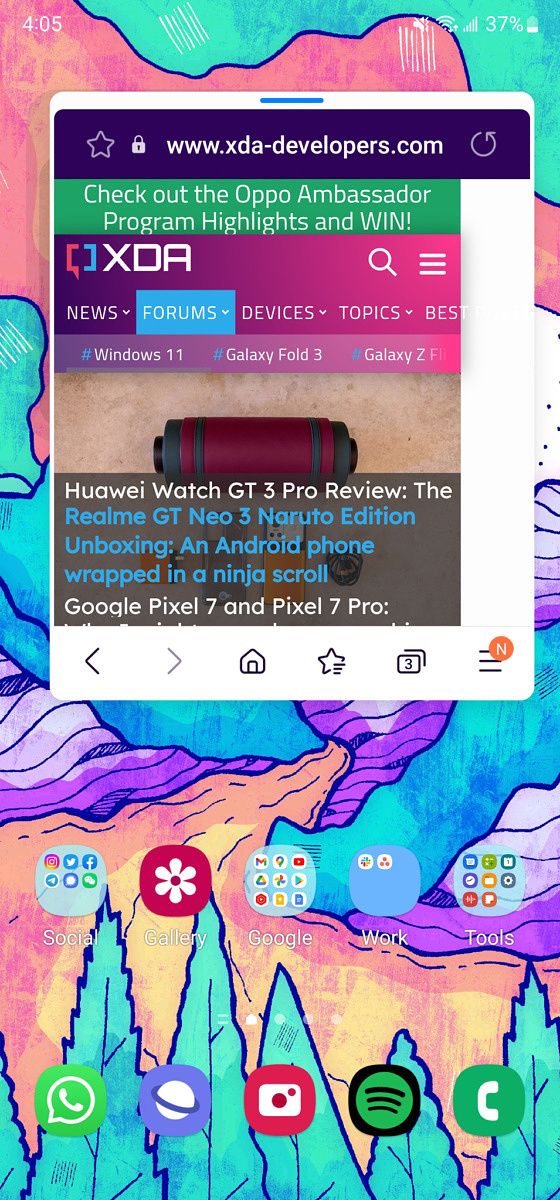
Instead let’s highlight software features specific to these two phones: Samsung’s OneUI is significantly better at taking advantage of the extra screen space. OneUI, even more than Android, can adapt itself to play nicely with small or large phone screens. You can make your homescreen grid denser, for example, so you can fit more apps and widgets onto the screen; you can rotate the homescreen to landscape orientation; you can run two apps at once in split-screen mode or have one app floating on top of another.

iOS, on the other hand, isn’t particularly optimized at all for the larger screen. iOS 16 runs exactly the same, whether on the 6.8-inch iPhone 14 Pro Max or the 5.4-inch iPhone 13 Mini. This means if you jump from a Mini to a Pro Max, you don’t get to see more information on the homescreen, just larger versions of the same information. To have such as large canvas and not even be able to run two apps at the same time (with the exception of some video apps’ picture-in-picture features) is disappointing.

But iOS gets a fair share of things right. I think 120Hz on iOS 16 looks noticeably more fluid than 120Hz on OneUI 4.1; there are quite a few apps that have superior iOS versions than Android; and as mentioned earlier, I am a fan of the Dynamic Island and all the various animations and little touches it enables.

Still, the Galaxy S22 Ultra’s software lets me be a lot more productive (superior multi-tasking), so I still prefer it over iOS.

General performance is fine for both phones, even if the iPhone 14 Pro Max is the more powerful device. As a personal computer that is with me every waking moment and serves to not only entertain but allow me to communicate with the world, both phones do what they’re supposed to do without major issues. I wish the iPhone 14 Pro Max would let me show more information on the homescreen, but I also wish the Galaxy S22 Ultra had better UI animations.


Apple iPhone 14 Pro Max vs Samsung Galaxy S22 Ultra: Which one should you buy?

Honestly, you can’t go wrong with either phone, as they’re among the absolute best of the best devices on the market. I’m partial to the Galaxy S22 Ultra personally because I like to multi-task and snap zoom photography, but I can see a strong case for the iPhone 14 Pro for those who want a more future-proofed processor, more cohesive UI, a stronger app, and third-party product ecosystem, etc.

This is a cop-out, but it really comes down to which OS you like better. Are you an Android person or an iOS person? What you choose from these excellent phones depends entirely on your OS preference.

    Galaxy S22 Ultra
    The Galaxy S22 Ultra is the best of the best right now in the Android space, with the best screen, the best zoom camera, and an S Pen to boot!
    Apple iPhone 14 Pro
    The iPhone 14 Pro and Pro Max are the highest-end 2022 phones from Apple. They introduce the A16 Bionic chip, Dynamic Island, Always-on display, and more.

The post Apple iPhone 14 Pro Max vs Samsung Galaxy S22 Ultra: Android vs iOS heats up in the premium space appeared first on XDA.


from XDA https://ift.tt/PSI8mC4
via IFTTT

How to install OTA updates and keep root on your Google Pixel phone

Part of the beauty of owning a Google Pixel phone comes through the proper availability of firmware images that can be used to return the device to a factory state. Even if you unlock the bootloader, root the phone, or tinker a bit too much, you may find yourself looking for a last resort to restore the stock configuration before taking the monthly security updates. While many hardcore Android fans will know exactly what to do, not everyone is as adept at getting their phone updated without losing root.

If you have access to a PC/Mac and are happy to take matters into your own hands, you can easily keep root access by performing a few extra steps in addition to sideloading the OTA update on your Google Pixel. In this tutorial, we’re going to show you how.

Navigate this article:

Pixel 6 Pro with bloom wallpaper on window sill


How rooting affects the capability of installing OTA updates

Rooting involves modifying parts of the Android boot image so as to gain superuser access. A regular monthly OTA or “over-the-air” update is incremental in nature, which means it can’t apply the delta patch to upgrade the stock boot image due to an obvious binary mismatch in a rooted environment. While opting for the full update package is a viable solution to this problem, it will eventually overwrite the bits and pieces required for root access from the boot partition.

So for those of you who plan to get dirty with your Pixel and may need a savior down the road, we thought we’d make sure you know how to keep root access across monthly security updates. The process isn’t difficult, but it does require a few ADB and Fastboot commands.


How to keep root and take OTA updates on your Pixel

Before starting, note that this tutorial assumes you have an unlocked bootloader and are already rooted with Magisk. Moreover, make sure that you have the latest ADB and Fastboot binaries installed on your PC/Mac and that the target device can be detected by these tools.

There are a few ways to get your Pixel update to the latest official Android build while keeping root. You can restore the stock boot image of the base version, wait until your phone gets a notification that will prompt you to download any waiting updates to your phone (or sideload the update manually), then patch the updated boot image and flash it. This is a bit slower but recommended method for beginners.

A relatively quicker method to get the very latest update on your Google Pixel while keeping root is to flash the official factory image with a pre-patched boot image. Keep in mind that both methods rely on access to a PC or Mac. None of them requires you to wipe the device, but it’s good practice to backup any irreplaceable data in case something goes wrong.

  1. Locate the exact version number of the currently installed software on your Google Pixel phone. Navigate to Settings > About phone and note down the text under the Build number section.
  2. Now we need to restore the untouched boot image corresponding to the installed build. As a precautionary measure, open Magisk, switch to the Modules tab, disable the active modules, and restart once before doing so.
    • Depending on the method of patching, the Magisk app might keep a backup of the stock boot image. In that case, you should be able to restore them through the Restore Images option under the after the Uninstall menu of the Magisk app. Nonetheless, we recommend flashing the untouched boot.img from the factory image to avoid any unforeseen issue.
  3. Download the fastboot-flashable factory image corresponding to the current Android build number for your Google Pixel phone on your PC/Mac. It should be named as <device codename>-<build number>-factory-<hash value snippet>.zip.
  4. Open the factory image using your favorite archive manager, locate the image-<device codename>-<build number>.zip file (yes, there’s a ZIP within a ZIP), and extract the boot.img file from it.
    Google Pixel 6a firmware stock boot image
  5. Install the stock boot.img for the current Android build number:
    1. Make sure USB debugging is enabled on the phone and the adb devices command on the computer returns the phone’s serial number.
    2. Reboot to the phone to the bootloader mode: adb reboot bootloader
    3. Flash the stock boot image: fastboot flash boot <full patch of the stock boot.img>
    4. Reboot: fastboot reboot
  6. You can now force your phone to pull any waiting updates by heading to Settings > System > System update > Check for updates. Alternatively, download the latest recovery-flashable full OTA image for your model and sideload it manually.
    • Don’t choose the latest factory image for upgrading, as the inbox flashing script will wipe the device by default.
  7. Now that you’re on the latest build, it’s time to patch the boot image with Magisk for regaining root access. We have a dedicated tutorial for how to install Magisk, so take a look at it if you need any help.
  8. Once your phone has rebooted after flashing back the patched boot image, you should be safely updated with the very latest OTA with root access.

Quick method

  1. Download the factory image corresponding to the latest update for your Pixel phone on your PC/Mac. You can either do it from Google’s download portal or from our Android 13 download index.
  2. Unpack the factory image using your favorite archive manager, locate the image-<device codename>-<build number>.zip file, and extract the boot.img file from it.
  3. Patch the stock boot image using Magisk, but don’t flash it on your phone yet.
  4. Copy the Magisk-patched boot image from your phone to your PC/Mac and rename it to boot.img.
  5. Open the image-<device codename>-<build number>.zip file from step 2 with the archive manager of your choice and replace the stock boot image file in it with the one from step 4.
    • Windows users are suggested to use 7-Zip, so that a simple drag-and-drop should be enough to push the patched file into the archive.
    • Linux and macOS users can use the built-in zip utility to replace the stock boot image with the patched boot image in the factory firmware:
      zip image-<device codename>-<build number>.zip boot.img
  6. In order to remove the data wipe routine, modify the flashing script like the following:
    • If you’re on Windows, then open the file named “flash-all.bat” with Notepad (or your favorite text editor), remove the “-w” parameter from the fastboot flashing segment, and save the file.
      Google Pixel 6a October 2022 flash-all.bat original Google Pixel 6a October 2022 flash-all.bat modified
    • For Linux and macOS, open the file named “flash-all.sh” with your favorite text editor, remove the “-w” parameter from the fastboot flashing segment, and save the file.
  7. Reboot your Pixel phone to the bootloader mode and perform the flashing operation using Fastboot.
  8. If everything goes right, the phone should reboot automatically into the latest OS version — that too with a pre-rooted boot image.

Google Pixel 6a running Android 13 October 2022 build rooted with Magisk

Don’t have access to a computer? While it is possible to direct Magisk to install itself to the inactive slot before taking an incremental OTA and keep root after the update, you might stumble on some unexpected roadblocks in this process. Thus, we recommend patching the boot image yourself and flashing it using a PC.


Verification

A simple way to check if you have followed all of these steps correctly is to head to Settings > About phone > Android version. You should see the exact patch and build number that you have sideloaded on your Google Pixel device.

Next, open the Magisk app from app drawer and the Magisk build number should be listed beside the “Installed” parameter, indicating that you’ve successfully managed to complete the process.


If you have any questions regarding rooting your Google Pixel phone, make sure to leave them in the comment section below.

The post How to install OTA updates and keep root on your Google Pixel phone appeared first on XDA.


from XDA https://ift.tt/tUjkopD
via IFTTT

AirPods Pro 2: All controls and gestures, explained

The AirPods Pro 2 may not look too different from the original AirPods Pro, but this new pair brings enough improvements — better audio, active noise cancellation, and slightly longer battery life — that they’re destined to be a huge hit.

The new AirPods Pro 2 also gained new gestures for volume control, as well as ear scanning (using the iPhone’s TrueDepth camera system) for “personalized spatial audio.” Add these to the already existing controls, and those who are new to the AirPods Pro may be confused. We’re here to help. Here’s our complete guide to all the controls and gestures you can do with the AirPods Pro 2.

    Apple AirPods Pro (2nd generation)
    The new AirPods Pro improve in all the areas that matter, including sound, battery, and in new features.

It’s all in the stems

airpods pro stems

When the original AirPods were introduced, many joked about its design, but as usual, Apple got the last laugh since many wireless earbuds in the years since have adopted the stemmed look. There is a clear benefit of having stems. They offload some of the hardware components from the core earpieces so they can be less bulky; they can house microphones that are closer to our mouths; and they allow easier controls because the stems can house touch capacitive panels.

The touch panels on each side by default do the same thing:

  • A single press starts or pause audio playback
  • Long press switches between either active noise cancelation (ANC) or transparency mode
  • Double press goes to the next track
  • Triple press goes back to the previous track

These controls have been in place since the 2019’s AirPods Pro, but the new 2022 second-gen models add a new action:

  • Swipe to adjust volume

Jump into settings and you can assign specific actions to long presses. For example, I set it so long pressing the left stem’s panel triggers Siri instead of switching between noise cancelation modes. In the settings, you can also add a neutral listening mode that is neither ANC nor transparency mode.

Voice commands work too

You can also access Siri via voice by saying “Hey Siri” out loud. Thanks to the three microphones on each bud, I find that even when I’m outside on city streets, the AirPods can pick up my command and summon Siri accordingly.

airpods pro 2

Head tracking

This isn’t a specific control feature per se, but the AirPods Pro 2 can also detect head movements, which is used for listening sessions with Spatial Audio. When music is playing and Spatial Audio is enabled, you can hear the audio shift from one side of your ear to the other if you turn your head, as if the music source is in a real-world space in front of you.

Call Controls

You can answer and decline phone calls when you are wearing the AirPods Pro 2.

  • A single press/squeeze on the stem answers the phone call.
  • Double press/squeeze on the stem declines the incoming phone call.

Once you have answered the call, you can single press/squeeze on the stem to end the call too.


One thing that sets AirPods Pro 2 apart from many other earbuds is that these gestures all work very well and have small refinements in hardware or software. For example, the haptic engine inside the stems is excellent, giving a tactile click anytime you press into it. Swipes will also bring an audible and satisfactory click as if you have physically swiped a switch.

    Apple AirPods Pro (2nd generation)
    The new AirPods Pro improve in all the areas that matter, including sound, battery, and in new features.

Factor in the excellent sound quality and seamless connectivity with iOS devices, and it’s easy to see why these are so popular. If you are not sold on the AirPods Pro 2, there are lots of other great wireless earbuds available.

The post AirPods Pro 2: All controls and gestures, explained appeared first on XDA.


from XDA https://ift.tt/m2XPpEB
via IFTTT

samedi 15 octobre 2022

Best docking stations for Surface Pro 9 in 2022

If you purchased a Surface Pro 9, then you might have figured out by now that just having two USB-C ports onboard might not be enough for you. For connections to printers, monitors, and other accessories, you will need a dongle or a dock. That’s why we’re here to help with our favorite docking stations for the Surface Pro 9 below.

The good news is that just like with other Surface PCs and Windows tablets, there are a ton of great docks for the Surface Pro 9. The docks range from official ones from Microsoft to third-party ones from Razer, Anker, and more. They also come with various ports, whether you need something for all of your accessories or just need an extra USB-A port. Check out our favorite docking stations for the Surface Pro 9 below!

    Microsoft Surface Dock 2

    Official dock from Microsoft

    The Surface Dock 2 has been Microsoft's standard dock for Surface devices for years, so it'll work well with your Surface Pro 9. It uses the Surface Connect port, and adds USB Type-A and Type-C ports, Ethernet, and display outputs via USB Type-C.
    Microsoft USB-C Travel Hub

    An official travel dock

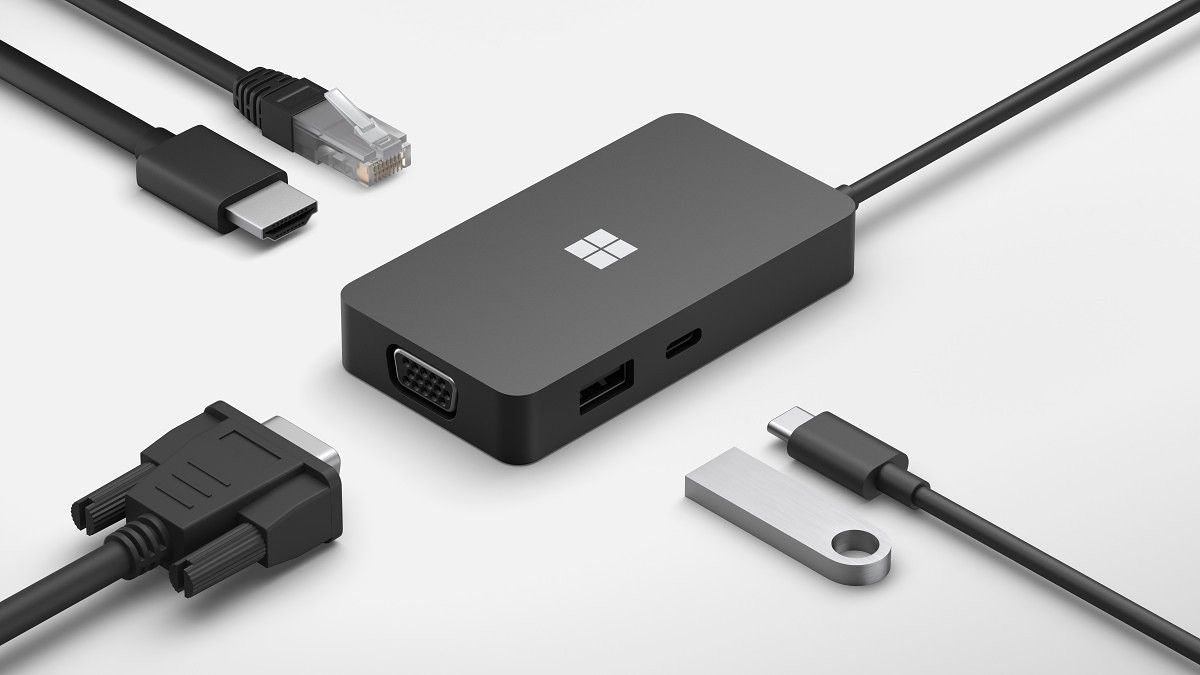
    If you want to take more ports with you on the road, the Microsoft USB-C Travel Hub gives you a couple of USB ports, HDMI, VGA, and Ethernet connections wherever you need them.
    Microsoft Surface USB-C to Ethernet and USB 3.0 Adapter

    For Ethernet and USB-A

    If you just need a USB-A and Ethernet port for your Surface Pro 9, you'll want to check out this basic option.
    Kensington Thunderbolt 4 Docking Station

    Thunderbolt dock

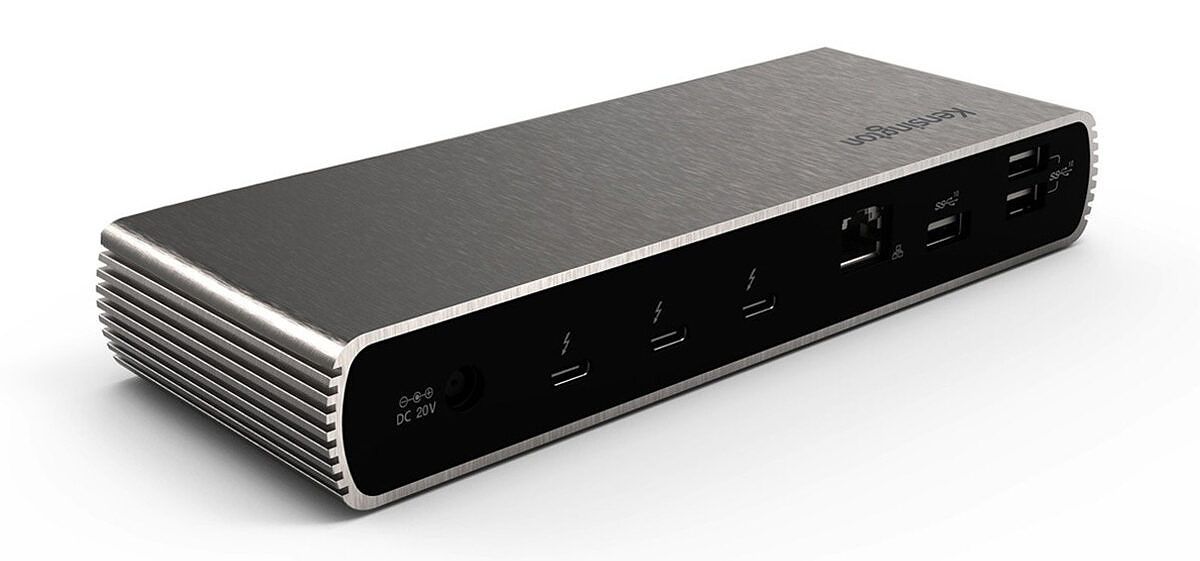
    This Kensington Thunderbolt dock adds USB ports, an SD card reader, Ethernet, and Thunderbolt daisy chaining. It also delivers 90W of power to your laptop regardless of what you connect to it.
    Plugable USB 3.0 Universal Docking Station

    Affordable USB hub

    To save even more money if you don't need Thunderbolt, this USB dock from Plugable is a great alternative. It adds six USB ports, Ethernet, and display outputs at a reasonable price.
    Anker 777 Thunderbolt 4 Dock

    A premium metal dock

    If you want a great all-around dock with a wide range of ports and a premium design, the Anker 777 is probably one of your best options. It comes in a sturdy-looking all-metal shell and has numerous ports, including two HDMI ports, USB Type-A, Ethernet, and downstream Thunderbolt.
    Brydge Stone II USB-C Universal Docking Station

    Sleek dock

    The Brydge Stone II USB-C Universal Docking Station is one of the sleekest docking stations you can get for the Surface Pro 9. It's not super expensive and has plenty of ports, including Ethernet and USB Type-A, for connections to your other accessories.
    CalDigit Element Hub

    Small dock

    If you want a very compact dock and you mostly rely on Thunderbolt-based peripherals, the CalDigit Element Hub may be for you. It only has a few ports, but with three Thunderbolt downstream connections and four USB Type-A ports, it's still very capable.
    Dell Dual Charge Dock

    Dock with wireless charging

    It's not for everyone, but the Dell Dual Charge Dock is an interesting product that gives you more ports for your laptop, charges it, and also has a wireless charging pad for your phone. It's pretty expensive, but you get a few extra ports and a very unique feature set to boot.

That’s it for the best docks for the Surface Pro 9. We suggest buying the Surface Dock 2, as it’s the best dock you can get from Microsoft. And because it comes directly from Microsoft, you know that it’ll work. Of course, you can buy any of the other docks on our list, too, especially if you want to use them with other devices or need more specific ports.

    Surface Pro 9 (Wi-Fi Model)
    The Surface Pro 9 is a top-tier Windows tablet with Intel or Qualcomm processors, and it comes in multiple colors for the first time ever.
    Surface Pro 9 5G
    The Surface Pro 9 with 5G is powered by the new Microsoft SQ3 chipset and it has a 120Hz display.

The post Best docking stations for Surface Pro 9 in 2022 appeared first on XDA.


from XDA https://ift.tt/Dxyb7RX
via IFTTT