With the recent announcement of the Amazon Echo Dot 5th generation came a pair of surprise announcements: Eero is coming to new Echo devices, and it’s being backported to the last generation as well. If you’re not familiar with Eero, it’s a home Wi-Fi system that’s owned by Amazon. You can build mesh networks with it primarily, and previously, you would need to buy extenders to expand your mesh network further in your home. Now, though, you can just use your Echo devices to do the same thing, starting with the Echo 4th Gen, Echo Dot 4th Gen, and Echo Dot 5th Gen.
While on the surface this is undoubtedly a great move for consumers, there are a few reasons why Amazon is doing this. The first is pretty obvious: it’s a great way to get an Alexa-powered device into every corner of your home. Mesh networks require extenders, and why would you buy a device that just extends your Wi-Fi connection, rather than an Echo Dot or an Echo that provides so much more functionality for in and around the same price? It obviously won’t be as good for signal as a dedicated extender (and may not support the latest technologies either — Amazon isn’t clear on this yet), but it will offer way more value to the consumer.
The second is that this is a great way to try and outcompete Google, one of the other major mesh network providers. Google has a Nest Wi-Fi access point that doubles up as an extender, but the audio is incomparable to an Echo. It was basically a mesh extender with a speaker built in. In the case of an Echo device, it’s a speaker with Eero built in; an important distinction.
What’s weird though is that it doesn’t seem that Amazon’s Eero expansion is coming to Echo devices outside of the U.S — even on the 5th generation Echo Dot. The U.K. Amazon listing for the device makes no mention of Eero, even though Eero devices are available there. Other European storefronts for the multinational conglomerate don’t mention it either, which raises another question: will it be an international addition? Is the hardware present in international Echo devices, or is it regulatory? Not much has been given to work with here.
Why Eero makes sense in the Echo series
If you have any Wi-Fi extenders in your home, think about where you place them. Assumedly, you place them in places that are hidden away, as, after all, it’s not as if they have any other function aside from repeating a signal in your house. What’s more, the cables can be unsightly, so there’s no real reason for your Wi-Fi extenders to be visible.
In contrast, an Echo device obviously makes sense for it to be accessible and visible at all times, and they’re generally made to look good as well. Your Echo devices are already in places where you’ve decided that they fit, and where they can both be heard and hear you. The added functionality of making them an Eero extender makes sense and works well in whatever place you already have them.
Finally, it may make you place them in more useful positions. I have a Wi-Fi extender hidden in the corner of a room when I know that it would work better in a more visible place. However, I prefer the neatness of having it hidden away behind a door. An Echo would make sense in its place, and I’d be a lot happier to work that into my living space.
I feel that this is, in a way, built on top of Amazon’s Sidewalk functionality. Sidewalk extends the working range of your connected devices beyond your home Wi-Fi, and can also help you to locate your pets and valuables. Sidewalk employs Bluetooth Low Energy, the 900Hz band, and other frequencies to enable Echo speakers, Tile trackers, Ring security cameras, and other supported Amazon devices to communicate over a low-bandwidth network. This is also a U.S.-only feature.
Other devices that could get Eero functionality
There are a ton of other devices that it would make sense for to get Eero functionality, and pretty much any of those that are already in Amazon’s ecosystem makes sense in some way. A Ring camera? That’d extend your Wi-Fi connection to the front garden. An Echo Show 15? Better connectivity in your kitchen or living room. There are a lot of reasons that users may want this functionality expanded to other products, and while the company hasn’t said anything yet about it, I wouldn’t be surprised if we see more in the future.
For now, though, Amazon has already made an enticing offer to anyone who wants to build a home mesh network. You can go with any other competitor and get standard extenders that work, though with no other functionality… or you can make your home a smart home at the same time. That’s complete with a voice assistant as well. If you’re already ingrained in the Amazon ecosystem or think that you would benefit from it, then Alexa may be in every room of your home very soon.
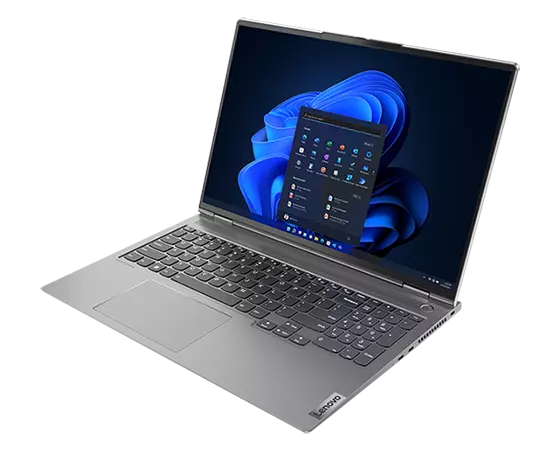
There’s been a new wave of 16-inch laptops recently designed for what I like to call “everyday creators”. The HP Envy 16 that I recently reviewed is a good example, and then there’s even the Dell XPS 17 which came before that new surge. Those are all great laptops in terms of specs, but they do seem pretty boring when you consider the overall designs. They’re also powered by Intel CPUs. The new Lenovo ThinkBook 16p Gen 3, which the firm sent to me for review isn’t quite like that at all.
Powered by the AMD Ryzen 9 6900HX CPU, 32GB of RAM, and Nvidia GeForce RTX 3060 graphics, this laptop is trying to shake up the market for creator laptops. It has a really unique slate-like design, inspired by Lenovo’s Legion gaming laptops. And, instead of going for Intel’s H-series CPUs, Lenovo opts for an AMD Ryzen 6000 HX series CPU which prove to be much more efficient and better on battery life.
Pair that up with the 16-inch 2.5K resolution IPS display, and this is one of the best creator laptops I’ve used in a long time. There still are some issues though, including the positioning of the trackpad, but those are tiny issues for a laptop that I really found hard to give up and send back after my review period. I suggest this laptop to anyone who wants a 16-inch AMD-powered laptop, that’s not just for gaming.
Lenovo ThinkBook 16p Gen 3 pricing and availability
Lenovo did not provide me with specific pricing and availability at the time of this review being published
A product page is available for the Lenovo ThinkBook 16p Gen 3, and it has the system as “coming soon,” but Lenovo Australia has the product for sale
At the time of writing this review, Lenovo didn’t have pricing or availability for me on this Lenovo ThinkBook 16p Gen 3. I asked the company for confirmation on pricing and will update this review when I hear back. A product listing page from Lenovo Australia is available but the pricing is not in United States dollars.
16-inch, 2560 x 1600, 500 nits, 100% sRGB, 165 Hz, HDR400, Color Calibration, X-Rite Pantone Certified, TUV Rheinland
Low Blue Light, TUV Eyesafe Certified, Dolby Vision, Ambient Light Sensor
Dimensions & weight
13.96 x 9.92 x 0.73 inches / 4.38 lb
Memory
32GB Soldered LPDDR5-6400
Storage
1TB SSD M.2 2280 PCIe 4.0×4 NVMe
Battery
71Wh, 230W Slim Adapter, supports Rapid Charge Pro (up to 50% in 30 min)
Ports
1 x USB Type-C
1 x USB4
2 x USB-A 3.2 Gen 2
1 x Combo Audio Jack
1 x HDMI 2.1
1 x SD Card Reader
Audio & microphones
2x2W Harman Brand Speakers with Dolby Atmos
Connectivity
Up to Wi-Fi 6, Bluetooth 5.0
Camera
Up to FHD + IR Camera
Color
Mineral Gray
Material
Three-sided metal construction. Diamond cut power button and touchpad
OS
Windows 11 Pro
Design: It’s stylish and different
It has a slate-like look
The back part of the laptop houses ports which also have backlit indicators
It’s quite compact and portable for a 16-inch laptop
If you look at our list, you’ll see that a lot of creator laptops end up looking the same, with an all aluminum chassis in one common color. It’s why the design section of my laptop reviews tends to focus on weight or ports. It is true that this Lenovo ThinkBook 16p Gen 3 keeps the same design as last year’s Gen 2 model, but it is still different from any other creator laptop of the same class on the market, and for three reasons that you’ll notice as soon as you unbox it.
Kicking things off is the dual-tone color. While a lot of laptops come in single color options, this ThinkBook shines differently. The top aluminum cover has a dual-tone mineral gray look that’s really stylish. One half of the lid is darker than the other. Lenovo has done this in its other products, too, like the original Chromebook Duet, and it really sets this ThinkBook apart from competing creators-first products like the HP Envy 16 that come in a single silver color.
The design of this laptop stands out in three ways you'll notice as soon as you unbox it.
The second impressive thing about this laptop is the way the screen is attached to the base. Instead of sitting at the very rear, Lenovo has placed the two hinges so they hang a bit closer to the keyboard, on top of a slate-like surface. This surface blends the hinges with the keyboard deck. It’s a really unique and clean look that Lenovo has used in the past on Legion gaming laptops like the Legion 5i, and I’m glad to see it on a creator laptop, too. It’s certainly fancy and sets this laptop visually apart from even the very best Windows laptops like an XPS 17.
Traditional creator laptops have ports on the left and right side, but this one from Lenovo also has ports on the back part, too. It’s a design choice thanks to the slate-like design, and it’s also what makes this laptop special. The left side has a full-size SD card slot and a headphone jack. The right side has two USB-C Gen 2 ports and a Kensington security lock.
The back is where the party is at, though with a USB 3.2 Gen 2 port, an always-on USB 3.2 Gen 2 port, HDMI 2.1, and a power connector. The indicators for these ports have a backlight, so you can find them in the dark. I really like the rear ports, as the mess of cables doesn’t need to run to the left or right of my desk. My cables and accessories are always facing away from me and out of my sight.
If I have one thing to complain about, it’s the lack of Thunderbolt. That’s because this is an AMD-powered laptop, and Thunderbolt is an Intel technology, so you can’t blame Lenovo. Though I don’t use it, some creators might want to hook up an external GPU to their laptops. This won’t work on AMD machines like this one so it is worth mentioning. USB-4 will change that in the future, but for now, this laptop only has USB 3.2. Other than that, this is a well-connected machine with everything you need for connections to monitors, USB drives, printers, and beyond.
This is even a really portable laptop for its size. The overall dimensions are 13.96 x 9.92 x 0.73 inches and the weight is 4.83 pounds. Compare that to HP’s Envy 16, and it has a slightly smaller profile. HP’s laptop is slightly bigger and much heavier at 14.07 x 9.94 x 0.78 inches and 5.91 pounds. Lenovo’s laptop is so much more portable. I even took it on the road with me to a press event, without it messing with my back and feeling too heavy in my bookbag.
Lenovo tells me that this design choice helps dissipate heat efficiently. The vents are to the sides of the laptop. and the aluminum bottom cover can keep the laptop running cool. Unlike with the HP Envy 16, I never felt this laptop getting warm, and I barely heard the fans kick in. It’s really a well-ventilated system even when gaming.
Display: High refresh, colorful, accurate, and tuned by X-Rite
The 2560 x 1600 resolution 165 Hz 16-inch 16:10 aspect ratio screen has a lot of room for multitasking
The display is bright, is tuned by X-rite, and has various color profile modes
The top of the display has an FHD webcam
When it comes to displays on creator laptops, I’ll always argue that OLED displays are best. The color accuracy is unmatched, but that technology often takes a big drain on the battery life. It’s why you see a lot of laptop makers go with traditional IPS or LCD panels with higher refresh rates, or just work with partners on technology that can improve color accuracy instead. (HP has a DreamColor display, for example.) Lenovo did just that here. This 2560 x 1600 resolution 165 Hz screen really impresses me.
Everyday things are a joy to look at on this laptop. With a 165Hz refresh rate on this display, Windows 11’s animations looked and felt alive. The 16:10 aspect ratio also means I was able to comfortably stack my windows side by side and multitask in Microsoft Edge and other open apps, without connecting to a monitor. Even the multimedia experience is great. I pulled up a video showcasing San Francisco landmarks and when I saw a shot of the Golden Gate Bridge, it looked as life-like as I remember from my trip there in December. If you look at the results I got on my colorimeter, you’ll see why.
Everyday things from webpages to YouTube videos are a joy to look at on this laptop.
I tested the display in the “default” mode set by X-Rite as the Lenovo laptop came in this mode out of the box, and it’s what I think most people will use. Other content-creator first profiles for Rec 709, sRGB, and “not calibrated” are also available and improve the numbers to cover higher parts of the color spectrums. The sRGB mode hit 100% of sRGB, 80% NTSC, 90% Adobe RGB, and 80% P3. Otherwise speaking, the standard results are below. It hit some really good numbers 69% of Adobe RGB, 64% of NTSC, 70% of P3, and 91% of sRGB. This is within the range of most consumer laptops, and, as I said, tweaking the other display profiles helps boost the color profile numbers even more for creators.
On brightness, Lenovo says this panel can hit 500 nits. I got just under that in my testing to around 493 nits. This helps with contrast levels, and it really makes the laptop great for use outdoors or in situations where you think you might have a lot of glare.
At the top of the display is an FHD webcam with a Windows Hello sensor. This webcam isn’t exactly high quality when put up against the 5MP webcam on the HP Envy 16, but it’s above the 720p standard that used to come on most laptops. This is also paired with AI Meeting Manager software, which can do real-time interpretations and translations, voice dictation, and translated subtitles to help overcome language barriers on web calls. The webcam also has a privacy shutter.
Keyboard and trackpad: Typing is quite comfy, but clicking isn’t
The keyboard is full-size and fantastic
The trackpad seems to be in the wrong spot and isn’t exactly the best
Lenovo makes the best keyboards on ThinkPads, so it’s no surprise to me that the one on this ThinkBook is amazing, too. The keycaps are curved, and perfectly line up with my fingers when speed tying. Keycaps go into the chassis with a nice smooth action, too. There’s also a number pad to the right, which has media controls in the function row. I really loved that addition, as I often listen to music when working, so the keys mean I don’t need to mess with the in-app controls to skip songs.
The trackpad, though, isn’t exactly the best. It’s set closer to the left side of the laptop since Lenovo has to leave room for the arrow keys and the number pad. This means that I sometimes triggered it by accident when typing. The trackpad also makes a loud clicking sound and isn’t as soft when pressed down. XPS laptops are better with this. I often found myself using a mouse with this laptop when at my desk.
I do think there’s a reason for the trackpad being where it is, though. There’s a speaker bar right above the keyboard deck so Lenovo has to push the trackpad further down closer to the edge of the laptop. The speaker bars are s a nice touch as I found it helps make audio feel more immersive, particularly during voice meetings. On other laptops, like the XPS 17, or the HP Envy 16, the speakers are to the right of the keyboard. This is a great design change to help set the laptop apart from others.
Performance: I really love the new AMD Ryzen CPU
The AMD Ryzen CPU on this laptop is powerful and efficient on power
On battery, the AMD Ryzen CPU drops performance a bit
I’m a person that really loves laptops with Intel chips. Intel’s new 12th generation Core i7 H-class processors can run up to 45 watts and have mindblowing 14-cores with a boost of up to 4.7Ghz. It’s a lot of raw power, but I’ve found laptops with those CPUs (like the HP Envy 16) suffer from poor thermals, as well as bad battery life. These aren’t an issue on the Lenovo ThinkBook 16p Gen 3. It’s why I am happy that Lenovo again went for AMD CPUs. Last year’s models had either the Ryzen 5 5600H or the Ryzen 7 5800H.
The CPU on this laptop is AMD’s best mobile CPU for creators. It doesn’t have as many cores as Intel’s H-class CPU (those have 14 thanks to the combo of performance and efficiency cores) on the last laptop I reviewed (the Envy 16,) but it doesn’t need them. The AMD CPU in this Lenovo just ends up being much more power efficient anyway. The 8 cores, and 16 threads help this AMD CPU in the ThinkBook perform just as good in multicore tests as any Core i7 Intel H-class processor in creator’s laptops like the XPS 17, and the HP Envy 16. Single-core performance, though, is better on an Intel machine, which has always been Intel’s strength.
Our PCMark 10 benchmarks which simulate productivity tasks can back this up, as well as CrossMark, and Cinebench multicore which stresses the CPU. The Geekbench scores might look lower, and could fool you, but in 3DMark, which tests the GPU and CPU strength when combined together for gaming, the AMD- powered ThinkBook excels.
The AMD CPU in this laptop paired with Nvidia graphics performs just as good but with better thermals when compared to a laptop with Intel Core i7 H-class CPU
Those are just generic benchmarks, though. In my actual use, I was very happy with the performance. Hooked up to a 4K monitor, and pushing through my daily workflow of juggling around tons of Microsoft Edge tabs posed no issues on this laptop. Gaming, on the other hand, was butter smooth. My favorite game, Microsoft Flight Simulator 2020 ran amazing on this laptop on high settings and the native resolution. I never got any dropped frames or freezing, and paired with the 165Hz display, the game was super smooth, and it felt like I was in the cockpit myself. On 1440p settings, my other favorite titles like GTA V also performed smoothly without issue. Again, much like with the HP Envy 16, this isn’t a gaming laptop, but it can be used for gaming if you want, and exceed expectations for video editing or photo editing, since the GPU can perform well in games, too.
Two other things are great about this AMD CPU on the Lenovo ThinkBook 16p Gen 3. The first is the thermals. I never noticed the thermal throttling that you end up getting when running benchmarks on a system with Intel processors. This CPU is able to punch out power when under heavy load, which is why the Cinebench multi scores are so high, and the overall responsiveness in CrossMark. The second is fan noise. Even when under heavy loads, the fans on this system aren’t that loud.
Do note that I did notice the usual battery throttling that some have experienced with CPUs. On power, the PCMark Benchmarks are scored at 6,336. On battery, that same test down by 1,008 points to 5328. On an Intel laptop like the HP Envy 16, the difference is less substantial and around 608 points. That laptop tested with 5,482 on power and 4,874 on battery.
That throttling is why the Lenovo ThinkBook 16p Gen 3 passed my expectations. Even with such a bright display and power-hungry graphics card, I managed to push out 7 hours of battery life for my daily day-to-day tasks which include web browsing, as well as playing games (for under an hour.) That’s impressive. Even connected to a 4K display, I got to 4 hours of battery, which is above the 3 hours that I usually expect. Of course, it comes at the expense of some CPU power as a result.
Should you buy the Lenovo ThinkBook 16p Gen 3?
Yes, the Lenovo ThinkBook 16p Gen 3 is a serious laptop. It packs a lot of power, an amazing display, and really good battery life.
Who should buy the Lenovo ThinkBook 16p Gen 3
Anyone in search of a laptop with a color-accurate display
You want a really good 16-inch laptop with RTX graphics and a lot of raw power
You want a laptop with good battery life
You’re a casual gamer
Who should not buy the Lenovo ThinkBook 16p Gen 3
Someone who will spend a lot of time using the laptop detached from a monitor. The trackpad isn’t the best.
While I really disliked the trackpad on this laptop, everything else about it is beyond perfect and I found myself using it more than I should. The display is amazingly bright and colorful, the battery life goes beyond my expectations, and the raw power for gaming and photo editing is perfect.
Intel’s Thunderbolt interface has long been one of the big draws of Intel-based PCs, and the company is already working on the next version. Thunderbolt 5, as we expect it’ll be called, is already in testing, and it’s looking to be very impressive. While it hasn’t officially been announced yet, Intel has already let some details out, and there’s some information we can infer from previous releases.
Thunderbolt is a hardware interface developed by Intel, designed to allow users to connect peripherals to their PCs. Initial releases of Thunderbolt use the Mini DisplayPort connector, but Intel switched to USB Type-C starting with Thunderbolt 3. While it uses the same connector, Thunderbolt has usually offered much higher data rates than standard USB, making the technology very compelling. Thunderbolt connections enable things like plug-and-play external GPUs like the Razer Core X.
Of course, being developed by Intel, this technology is usually exclusive to Intel-based PCs. Thunderbolt 3 has been adopted by the USB Implementers Forum to be known as USB4, and there are a few non-Intel laptops that support it, like Lenovo’s ThinkPad Z series or Apple’s MacBook Air. However, Thunderbolt 4 is still proprietary Intel technology with high licensing fees, so it’s usually exclusive to Intel-powered devices.
The current version of Thunderbolt — Thunderbolt 4 — has a data rate of 40Gbps, and that’s enough to connect two 4K displays at 60Hz, for example. That’s why we see some incredible Thunderbolt-based docks with lots of USB ports, Ethernet, display outputs, and even power delivery. A single Thunderbolt port can turn into a multitude of high-speed connections, which means you can greatly expand your PC’s capabilities.
What’s new in Thunderbolt 5?
Intel hasn’t officially announced the next generation of Thunderbolt yet, but that doesn’t mean we don’t know anything. A while back, Gregory Bryant, Executive Vice President and General Manager at the Intel Computing Group visited one of Intel’s labs where new Thunderbolt technology is being developed. The executive accidentally shared a photo that included details of a new type of connection that supports data rates of up to 80Gbps.
This effectively doubles the 40Gbps data rate of Thunderbolt 4, taking the capabilities of the connection that much further. The image also mentioned the connection will “support the existing USB ecosystem”, indicating we’ll continue to see USB Type-C being used as the connector for the Thunderbolt interface. This should help ensure backward compatibility with devices based on Thunderbolt 3 and 4.
Intel plans to achieve this using a new type of data signaling called PAM-3. PAM stands for “Pulse Amplitude Modulation”, and it works in a way that allows a device to send three different values: -1, 0, and +1. That value is determined by the amplitude of the signal relative to specific thresholds — if it’s above the high threshold, it’s a 1, below the low threshold it’s a -1, and somewhere in the middle, it’s a 0. The hardware takes two of these signals and combines them to generate a 3 bit data signal, resulting in an increased data rate.
When is Thunderbolt 5 coming?
Without an official announcement, it’s hard to say when Thunderbolt 5 will be available, but we can look at past trends to have an estimate. It took about two and a half years to go from Thunderbolt 1 to Thunderbolt 2, and then two years to get to Thunderbolt 3. This was in 2015, and it was only in 2020 that we got to see Thunderbolt 4, a significant increase in time between new releases. On top of that, Thunderbolt 4 didn’t raise the maximum data rate from Thunderbolt 3, it only made 40Gbps the default.
That suggests Thunderbolt is seemingly overdue for a refresh. On top of that, USB 4, the latest version of the USB standard, is based on Thunderbolt 3 and also supports 40Gbps data rates, and the USB-IF has already announced USB 4 version 2.0, which will double the data rate to 80Gbps. Intel will probably want to keep having an advantage over standard USB connections, or at the very least match it, so it feels like Thunderbolt 5 should be coming soon. Still, Intel has already introduced its 13th-generation desktop processors and Thunderbolt 5 is still nowhere to be found. Hopefully, the company will have more to share at CES 2023, but that remains to be seen.
Will my devices support it?
As with previous generations of Thunderbolt, one of the big requirements for Thunderbolt 5 is likely going to be an Intel processor. It’s technically possible to license the Thunderbolt interface for other devices, but that adds significantly to the cost. Apple touts Thunderbolt support in its Apple Silicon-based Macs, but that’s a rare example.
Even then, you shouldn’t expect every Intel-based device to support Thunderbolt 5. Even using Intel processors, Thunderbolt has additional costs for manufacturers, so more affordable PCs often skip out on support for it. Most premium and high-end laptops should support the standard, though.
As for backward compatibility, the leaked image we’ve seen suggests Thunderbolt 5 should be interoperable with Thunderbolt 3 and 4. Naturally, you’ll be limited to the data rates of the lower versions of the interface, but the devices should work all the same. Of course, without an official announcement, that’s not completely guaranteed yet. Thunderbolt should also work with devices regardless of operating system — be it Windows 11, Chrome OS, or others.
If you spend a lot of time on the internet, we’re sure you’ll have heard of cookies. Cookies are essentially pieces of website data that are stored on your computer by the web browser you use. Cookies are important since they are responsible for remembering your activity history on websites, but just like the edible kind, too many of them can be bad for your health — or your computer’s health in this case.
The primary function of cookies is to make sure your browsing experience isn’t reset every time you open a website. For example, if you added something to your cart on Amazon and closed the browser, the item will still remain in your cart the next time you open it, thanks to cookies. They’re also responsible for keeping you signed in on all the websites you visit. But cookies can also be a threat to your privacy as they track your usage continuously. So it’s always good to know how to clear cookies from your web browser from time to time. It can even speed up your browsing experience, get rid of some bugs, or make some free space on your computer.
We’re going to tell you how you can clear cookies from your PCs, laptops, or even your smartphones from time to time so as to ensure a safe and snappy web browsing experience. Before we begin, note that clearing cookies will sign you out of all websites you’re logged into so it’s wise to use a good password manager to make the process of signing in easier later on.
How to clear cookies on popular web browsers
Clearing cookies is a straightforward process and only involves a few clicks through different menus. Depending on the web browser you use, the steps to clear cookies may differ, so make sure you’re following the right procedure.
Google Chrome
Google Chrome is one of the most popular web browsers out there and is used widely across different platforms and devices including Windows, macOS, Android, iOS, and of course, ChromeOS found on Chromebooks. If you use Google Chrome, you can clear your cookies by doing the following:
Open Chrome on your computer and select the three dots on the top-right corner of your screen. Then, select Settings.
Scroll down to Privacy and Security and choose Clear browsing data.
On this window, select Cookies and other site data. You can also select to clear your browsing history and cache if you want to.
After selecting the required option, click on Clear data and you’re done.
Microsoft Edge
Ever since Microsoft introduced Edge as the replacement for Internet Explorer, it’s one of the most improved browsers and has caught up with the competition. It’s based on the Chromium engine which means you can continue to use extensions from Google Chrome along with some other common features. If you use Microsoft Edge as your primary web browser, here’s how you can clear cookies –
Open Edge on your computer and select the three dots at the top-right corner of the browser window. Select Settings from the drop-down menu.
On the left panel, select Privacy, search, and services.
Scroll down to Clear browsing data and click on Choose what to clear.
Here, select Cookies and other site data along with the other options if you want to.
Click on Clear now and you’re good to go.
Mozilla Firefox
Firefox is another of those browsers that have been around for a long time and is one of the most popular web browsers on Windows. If you use Firefox, this is how to clear cookies –
Fire up Firefox on your computer and click on the three horizontal lines on the top-right corner of your screen.
Select Options from the drop-down menu.
From the menu on the left, select Privacy & Security.
Scroll down till you find Cookies and Site Data and click on Clear Data and then again on Clear. Your cookies are now cleared.
Opera
The Opera browser has been around for a while and is also quite popular among the others we’ve mentioned above. If you use Opera on a daily basis as your web browser of choice, here’s how you can clear your cookies:
Open the Opera browser on your computer and select the Easy setup icon on the top-right corner.
Scroll down till you find Privacy & Security and next to Browsing data, you’ll find a Clear option. Click on it.
In the window that pops up, select Cookies and other site data and click on Clear data. That’s pretty much it.
Safari
If you use a MacBook or any macOS-based device for that matter, the chances are you use Safari as your default web browser since it is the most optimized browser for macOS. If that’s indeed the case, here’s how you can clear cookies on Safari:
Open Safari on your macOS/Windows device and select Safari on the menu bar up-top.
Select Preferences from the drop-down menu.
Head over to the Privacy section and next to Cookies and website data, you will find an option to Manage Website Data. Click on it.
You can choose to individually delete the entries in the list, or you can just select the Remove All option and then click on Done. You’re good to go.
How to Clear Cookies on Android
Google Chrome is the default web browser that comes pre-installed on almost every Android smartphone so that’s going to be the one we’ll be covering here. If you use a different browser, the steps should remain similar. Here’s how you can clear cookies on your Android smartphone –
Open the Google Chrome app and select the three-dot menu from the top-right corner.
Next, head over to Privacy and security.
Here, you will find an option named Clear browsing data.
Select it, and tick the checkbox next to Cookies and site data and select Clear data. Your cookies are now cleared.
How to Clear Cookies on iPhone
Just like how Chrome is the default browser on Android, Safari is the default browser that comes pre-installed on every iPhone. While you can change your default browser to third-party apps on the latest version of iOS, a lot of people prefer sticking to Safari. If you’re one of those people, here’s how to clear cookies on Safari on iOS:
Open the Settings app on your iPhone and scroll down till you see Safari.
Select it and scroll down once more to find Clear History and Website Data.
Tap on the option and when prompted, select Clear History and Data, and your cookies will be cleared.
These are the ways you can clear cookies on your devices no matter what browser you use. As stated earlier, cookies aren’t necessarily bad and are even advantageous in a fair few scenarios like bringing you back to the same place on a webpage even after closing and reopening your browser, or keeping you signed in so you don’t have to enter your passwords repeatedly. So you don’t have to clear your cookies too frequently. But once in a while, if you feel your browser is slowing down or things aren’t just loading properly on your browser, it’s a good idea to clear cookies and refresh your browser to try to speed things up.
After years of rumors and speculations, Google’s first smartwatch, the Pixel Watch, is finally here. As expected, the smartwatch offers a number of health-tracking features, including continuous heart rate monitoring, sleep tracking, and SpO2 blood oxygen tracking. But can the Pixel Watch monitor your skin temperature? Let’s find out.
The skin temperature monitoring feature has gained some traction among smartwatches in recent times. The Galaxy Watch 5 and Apple Watch Series 8 both feature a dedicated skin temperature sensor, while Fitbit devices, including the Charge 5, Sense 2, and Inspire 3, also have it. However, Google’s latest smartwatch misses out on this functionality.
The Pixel Watch doesn’t have a skin temperature sensor similar to the Apple Watch Series 8
Unlike the latest Apple and Samsung smartwatches, the Pixel Watch doesn’t come equipped with a skin temperature sensor. However, it can still track your heart rate, blood oxygen levels, workouts, and more. For the unaware, skin temperature is the temperature on your skin’s surface and is different from your body’s core temperature. It usually varies a lot more than your core temperature, as warming up or cooling down the skin is one of the mechanisms of the body to keep the core temperature stable. Smartwatches like the Apple Watch Series 8 and Fitbit Charge 5 estimate your baseline wrist temperature when you’re asleep and use that data to analyze nightly changes to it. It’s worth noting that the skin temperature sensing feature is not an infrared thermometer and can’t provide measurements in real time.
Overall, the lack of a skin temperature monitoring feature on the Pixel Watch is not a huge deal. The tech is still in its infancy, and its significance as an indicator for predicting your overall well-being is still very much unproven.
The Google Pixel Watch is now available for purchase. It starts at $350, but you can take advantage of deals to snag it for a lot less.
The Cupertino firm revealed the Apple Watch Series 8 back in September 2022. This welcome addition to the Apple Watch line introduces some decent offerings — while retaining the same design as its predecessor. Perhaps the biggest differences between the Series 7 and Series 8 are car crash detection and the body temperature monitor. The former automatically calls emergency services when it detects a crash. Meanwhile, the latter helps non-males monitor their reproductive health. Series 8 users also get to take advantage of the more efficient Bluetooth 5.3. If you plan to buy an Apple Watch Series 8, you must be wondering — does it support 5G networks and eSIM connectivity? Here’s everything you need to know about these particular matters.
No 5G support on the Apple Watch Series 8
Unfortunately for high-speed internet enthusiasts, the Apple Watch Series 8 does not support 5G networks. You only get the usual LTE/4G support. That’s assuming you purchase the Cellular model, of course. Considering the significant battery power 5G drains, it makes sense for Apple to exclude this upgrade on its wearable. The Apple Watch already has a tiny battery, and connecting to 5G networks will almost certainly make the battery life irritatingly short. That’s not to mention that 4G is already fast enough to execute internet-related tasks on the Apple Watch. These typically include texting, streaming music, and answering FaceTime audio calls. All of the aforementioned tasks work just fine on LTE.
But you do get eSIM support
As you might have guessed, the Apple Watch Series 8 does not have a physical SIM slot. So if you purchase a Cellular model, it indeed includes an eSIM. You can activate a compatible eSIM plan to text, call, and use 4G when your phone isn’t around. Though, it’s worth noting that actively using cellular functions on the Apple Watch drains its battery significantly.
Windows 11 has been around for over a year now, but the first big feature update has arrived. The original OS brought with it a new UI, a whole new Microsoft Store, Snap Layouts, and even Android apps by way of the Amazon Appstore. But now, you’re probably wondering what the system requirements are so you can see if your PC can even run Windows 11, or if those requirements have changed as a result of Windows 11 version 22H2.
Luckily, Microsoft already has a support document ready. And yes, the system requirements increased for the original version of Windows 11, although in fairness to the Redmond firm, it really hasn’t raised system requirements in any significant way since the Windows 7 era. The Windows 11 system requirements did not change with version 22H2.
First of all, RAM requirements went up. You need 4GB of RAM to run Windows 11, double that of a 64-bit Windows 10 machine and quadruple that of the 32-bit requirement for Windows 10. You’ll also need 64GB of storage instead of 32GB.
You’re going to need a 64-bit processor to run Windows 11. 32-bit support is out, and it was even out for new Windows 10 PCs, although they were still getting updates. The CPU also needs to have two or more cores, and that includes everything sold in the modern era.
However, none of those listed CPU requirements matter, and it’s unclear as to why Microsoft even lists them. The firm actually has a specific list of CPUs that are supported. If you don’t want to look up yours, it’s pretty simple. For Intel, it’s eighth-gen or newer; for AMD, it’s Zen 2 or newer; and for Qualcomm, it’s Snapdragon 850 or newer.
Microsoft had promised to reconsider its position on Intel seventh-gen and AMD Zen 1 processors, but not much changed. Seventh-gen Core X and Xeon processors were added, as well as one single mainstream chip: the Core i7-7820HQ, also known as the processor in the Surface Studio 2.
The other key change is TPM 2.0, although if you’ve got a supported processor, you should have TPM 2.0. It’s been a requirement for new PCs since Windows 10 version 1607. You can check and see if your PC has it, and if not, you might even be able to enable it in the BIOS.
Windows 11 System Requirements
Processor:
1 gigahertz (GHz) or faster with 2 or more cores on a compatible 64-bit processor or System on a Chip (SoC)
RAM:
4 gigabyte (GB)
Storage:
64 GB or larger storage device
Note: See below under “More information on storage space to keep Windows 11 up-to-date” for more details.
System firmware:
UEFI, Secure Boot capable
TPM:
Trusted Platform Module (TPM) version 2.0
Graphics card:
Compatible with DirectX 12 or later with WDDM 2.0 driver
Display:
High definition (720p) display that is greater than 9” diagonally, 8 bits per color channel
Internet connection and Microsoft accounts:
Windows 11 Home edition requires internet connectivity and a Microsoft account to complete device setup on first use.
Switching a device out of Windows 11 Home in S mode also requires internet connectivity. Learn more about S mode here.
For all Windows 11 editions, internet access is required to perform updates and to download and take advantage of some features. A Microsoft account is required for some features.
If you’d like, you can take a look through the full requirements of Windows 11, which gets a lot more granular. One thing that’s not listed here is that PCs will require a Precision touchpad, something that may be an issue with older PCs, and even some newer HP laptops.
Note that since this article was originally written, there have been various workarounds published for these requirements. As it turns out, you won’t need a workaround. Microsoft will just let you install Windows 11 via an ISO if you don’t have a supported CPU, although you might not get updated.